Features (Overdrive-release)
Live view
View your car's surround-view cameras in real time on your phone from the
Live Viewmenu → How to Login

Trip
- Shows the data of each trip; it records trip data automatically for every journey
Settings
Trip Analytics: Enable/disable trip analyticsElectricity Rate: Setcurrencyandprice/kWhDistance Unit: Set the speedunitStorage Location: Set thedata storage locationStorage Limit: Limitstorage space

Performance
Shows battery charging history

Shows
12 V.battery voltage history
Shows
HVbattery temperature data
Recording
Settings
Recording Mode
Continuous: Records throughout the whole driverecommended
Quality Settings
Recording Quality: Recording qualityVideo Codec: Recording codec;H.265recommended for clear quality and smaller file sizeCamera FPS: Frames recorded per second;25recommendedClip Duration: Length of each recording

Telemetry Overlay
Show on Recorded Video: Show data on the video, e.g., speedRecord Cabin Audio: Enable/disable cabin audio recording

Recording Storage
Storage Location: Set thedata storage locationStorage Limit: Limitstorage space


View recorded files from the
Recordingsmenu — you can review, delete, and download them
Surveillance
Settings for the surveillance recording mode while the car is parked
Surveillance Mode
Enable Surveillance: Enable/disable surveillance mode

Safe Locations
Disable at Safe Locations: Enable/disable safe locationssurveillance doesn't work in these areasZone Radius: Set thezone radius with no surveillance

Quality Settings
Pre-event Buffer: Recordsbeforethe eventPost-event Buffer: Recordsafterthe eventRecording Quality: Recording qualityVideo Codec: Recording codec;H.265recommended for clear quality and smaller file sizeCamera FPS: Frames recorded per second;25recommendedClip Duration: Length of each recording

Surveillance Storage
Storage Location: Set thedata storage locationStorage Limit: Limitstorage space


View recorded files from the
Recordingsmenu — you can review, delete, and download them
RoadSense
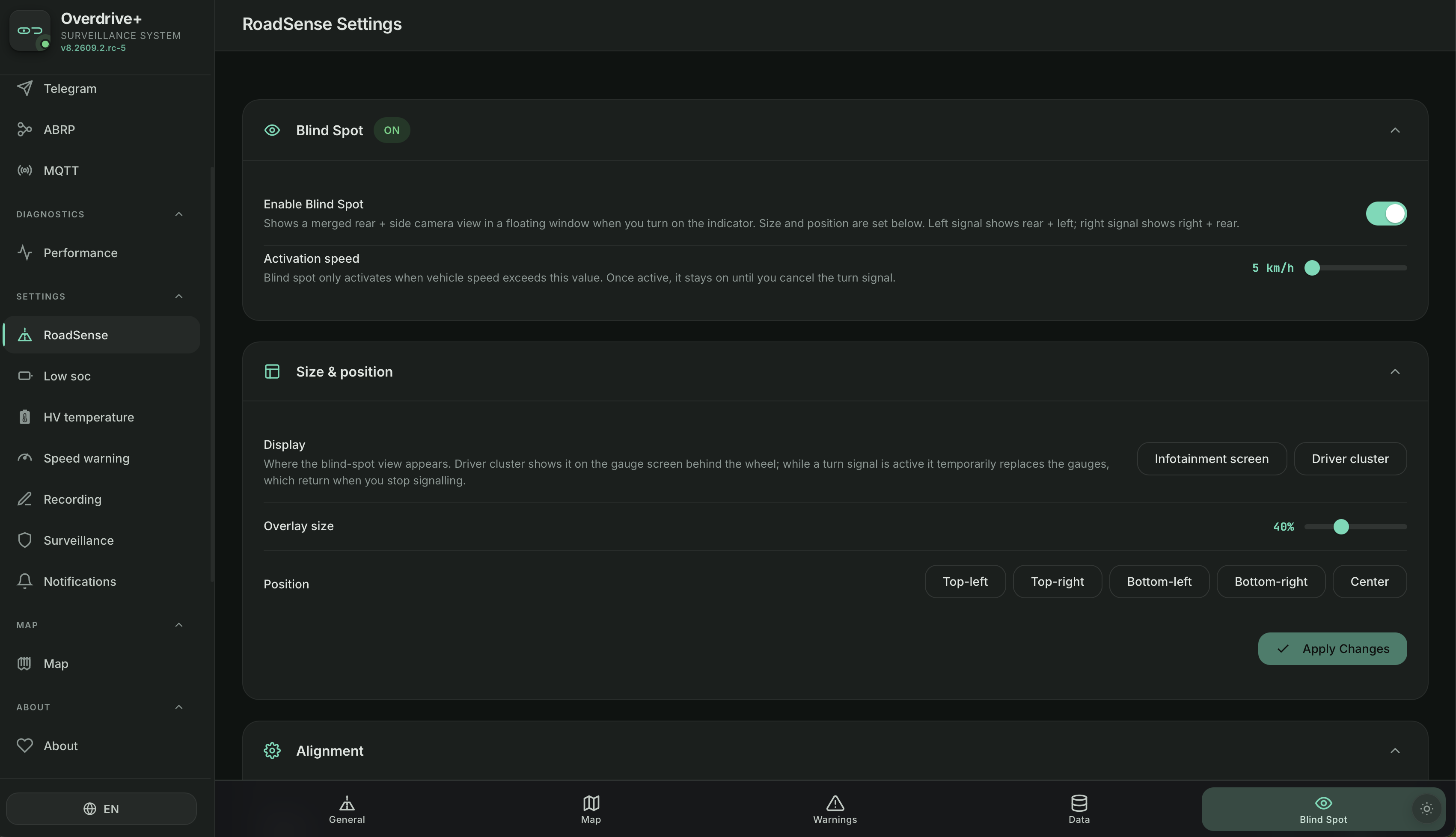
Blind Spot Settings
Blind Spot tab
Enable Blind Spot:On/Offthe functionActivation speed: Display camera footage from the side mirror when the speed reaches how many kilometers per hourDisplay: SelectInfotainment screento display the camera footage on the screen
Hazard map Settings
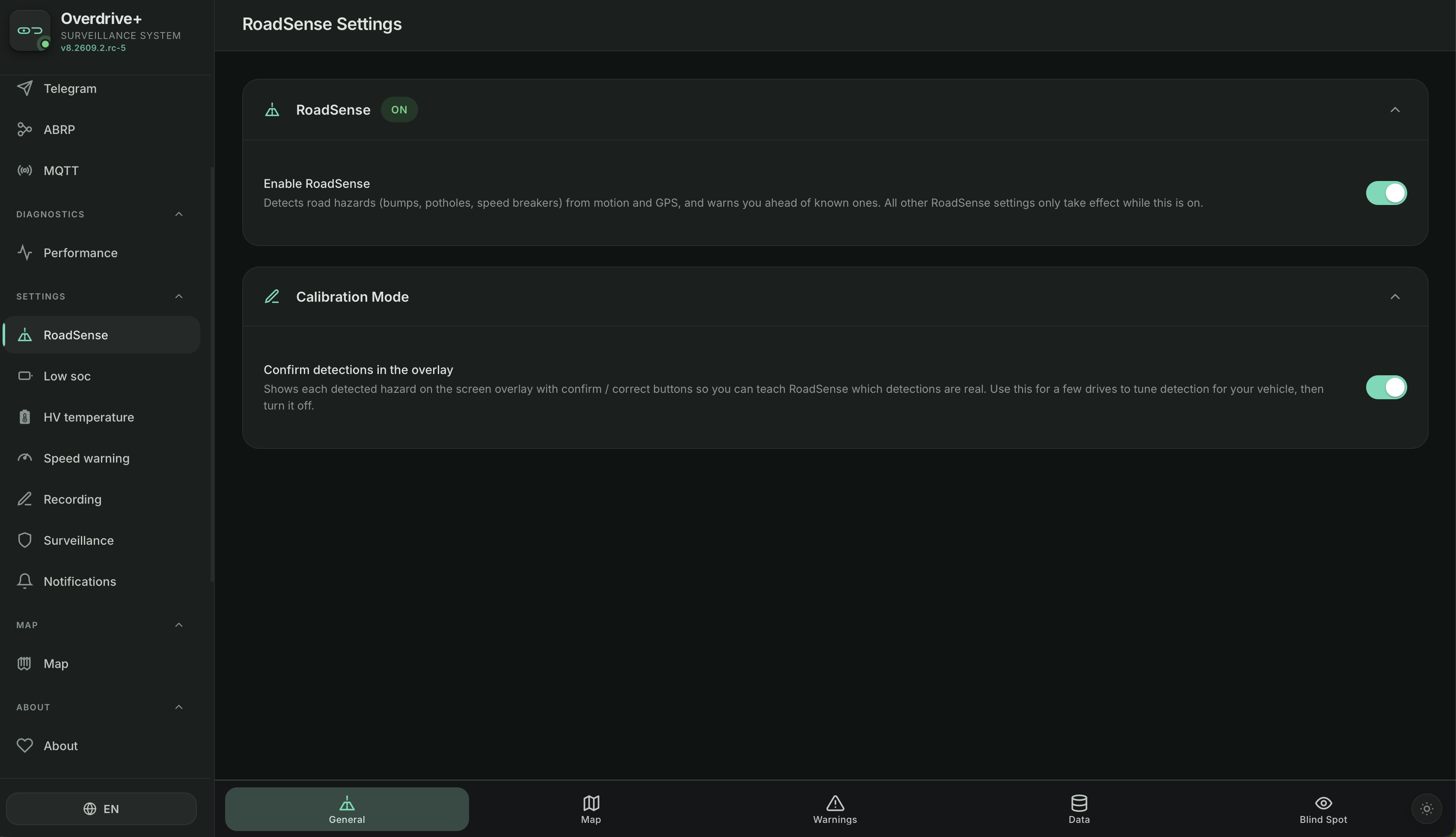
genaral tab
Enable RoadSense:On/Offthe functionCalibration mode:On/Offthe calibration for accuracy
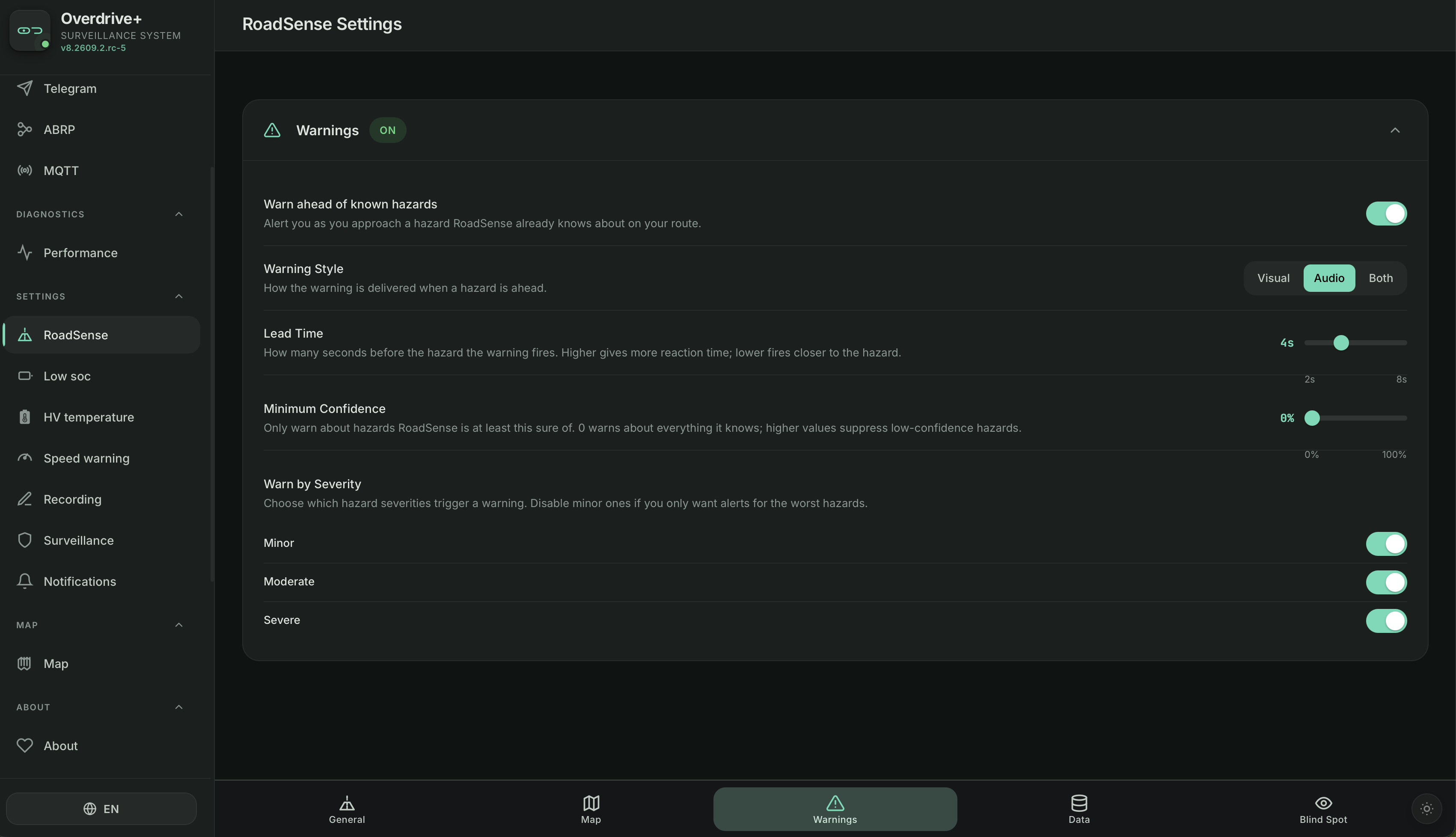
warning tab
Warn ahead of known hazards:On/Offthe warningWarning Style: Select the warning style -Visual: Visual warning -Audio: Audio warning -Both: Visual and audio warning
 [← Getting Started](intro.md#getting-started)
💰 Support ✨